Introduction
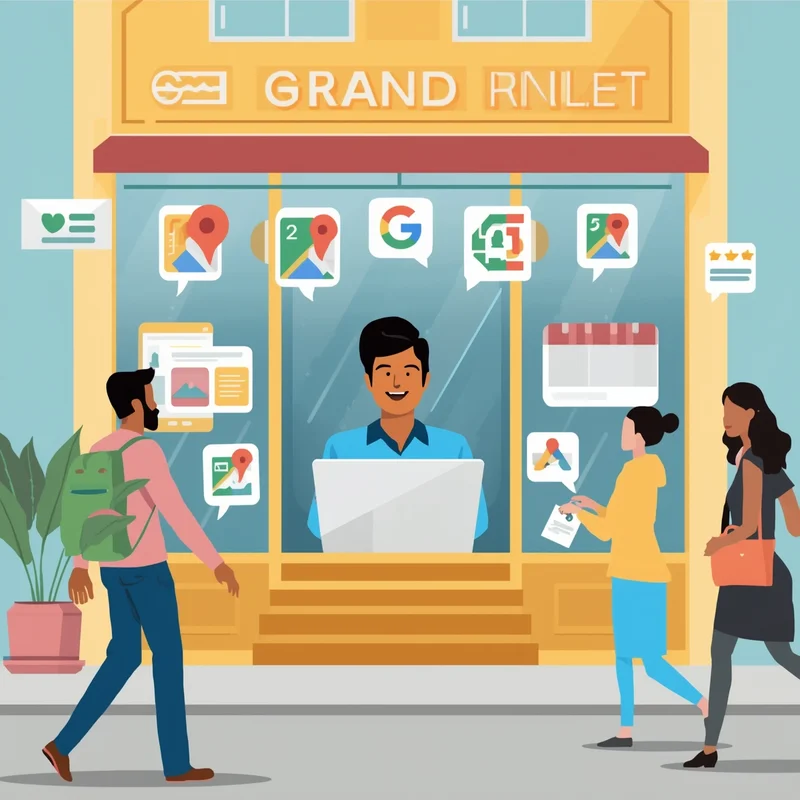
Customers today want quick answers—and they don’t always want to call. That’s where Google Business Messaging comes in. It allows people to chat with you directly from your Google Business Profile (formerly Google My Business) on Search and Maps.
For small and micro businesses in India—from local grocery stores to salons, restaurants, coaching centers, and service providers—this is a game-changer. It opens a direct line of communication with potential customers, helping you answer questions, share offers, and build trust in real time.
In this guide, we’ll cover how to set up Google Business Messaging, why it matters, and how platforms like LocalShouts (https://www.localshouts.com) can help you make the most of it.
What Is Google Business Messaging?
Google Business Messaging is a free feature that lets customers send you a text-like message directly from your Google Business Profile. When someone searches for your business or finds you on Google Maps, they will see a “Chat” or “Message” button.
Once they click it, they can type a question, ask about products, check availability, or even book appointments. You receive the message instantly and can reply through the Google Business Profile dashboard or the Google Maps app.
Why Google Business Messaging Is Important
Messaging gives businesses an extra opportunity to connect with potential customers—and it improves their local SEO performance. Here’s why it matters:
- Convenience for Customers: Many people prefer texting over calling, especially for quick queries.
- Faster Conversions: Quick responses can convert curious browsers into paying customers.
- Better Engagement Signals: Active messaging improves user engagement, which is a local ranking factor.
- Competitive Advantage: Not all businesses have messaging enabled, so you can stand out.
LocalShouts (https://www.localshouts.com) regularly advises local businesses to turn on messaging as part of their local SEO strategy.
How to Enable Google Business Messaging
Setting it up is simple. Here’s a step-by-step process:
Sign in to Your Google Business Profile
- Go to your profile at business.google.com and log in.
Find the Messaging Option
- On the left-hand menu (or top menu on mobile), click Messages.
Turn Messaging On
- Toggle the switch to enable messaging. This will make the “Chat” button appear on your listing.
Set a Welcome Message
- Customize an automatic greeting, such as
- “Thanks for contacting [Your Business Name]! We’ll reply shortly.”
Download the Google Maps App (Optional)
- To reply on the go, download the Google Maps app and enable notifications for messages.
Best Practices for Using Google Business Messaging
- Once messaging is enabled, following good practices is key to making it effective.
1. Respond Quickly
- Google tracks response times. Slow replies may cause your messaging option to be disabled. Aim to reply within minutes, not hours.
2. Keep It Professional but Friendly
- Write in clear, simple language. Use a polite tone that matches your brand’s personality.
3. Answer Questions Thoroughly
- Provide complete information—product availability, pricing, services, business hours—so the customer doesn’t have to search elsewhere.
4. Use Quick Replies for Common Questions
Prepare standard responses for frequently asked questions like
- “Where are you located?”
- “Do you offer home delivery?”
- “What are your prices?”
5. Include Links When Relevant
- Share links to your website, menu, booking page, or special offers to move customers toward a conversion.
6. Stay Available During Business Hours
If you’re offline often, update your business hours to match your availability or turn off messaging temporarily.
How Google Business Messaging Improves Local SEO
Engagement through messaging indirectly boosts your local search visibility. Here’s how:
- Increases Interaction: More clicks and conversations send positive signals to Google.
- Improves Customer Experience: Happy customers are more likely to leave good reviews, further boosting rankings.
- Keeps Your Profile Active: Regular activity shows Google that your business is alive and responsive.
Together, these factors help you stay competitive in the Map Pack rankings.
Examples of Businesses Using Messaging Successfully
- Restaurants: Customers message to ask about table availability, menus, or delivery options.
- Salons: People book appointments, check slot availability, or ask about pricing before visiting.
- Retail Shops: Shoppers confirm if a product is in stock before heading to the store.
- Coaching Centers: Parents message to ask about fees, batch timings, and admission processes.
- Service Providers: Plumbers, electricians, and mechanics get direct job inquiries via messaging.
By responding quickly, these businesses convert casual searches into confirmed visits.
Common Mistakes to Avoid
Even though messaging is powerful, using it poorly can hurt your reputation. Avoid these mistakes:
- Delayed Replies: Slow responses frustrate users and may cause Google to disable the feature.
- One-Word Answers: Short or unhelpful replies can drive potential customers away.
- Ignoring Messages Outside Hours: If you can’t respond after hours, turn messaging off to avoid bad first impressions.
- Spamming Customers: Don’t send unsolicited messages or promotions unless the customer asks.
Tips to Turn Chats into Customers
Your goal isn’t just to reply—it’s to convert conversations into real business. Here’s how:
- Be Helpful, Not Pushy: Guide customers toward the solution they need.
- Share Offers: Mention any discounts, special deals, or new arrivals to create urgency.
- Ask for Confirmation: If a customer is interested, confirm their appointment, order, or visit time.
- Follow Up if Needed: If they haven’t responded, a polite follow-up can secure the sale.
How LocalShouts Can Help
If you are new to online marketing, setting up messaging and responding properly can feel overwhelming. LocalShouts (https://www.localshouts.com) provides learning resources, local visibility guides, and actionable tips for small and micro businesses to make the most of features like Google Business Messaging.
With their step-by-step advice, you can turn your Google Business Profile into a powerful lead-generation tool without spending much on ads.
Conclusion
Google Business Messaging is one of the simplest yet most effective ways to connect with potential customers. By enabling it, replying quickly, and using it strategically, you can improve engagement, boost your Map Pack rankings, and drive more foot traffic to your business.
For small and micro businesses, this is a free, easy-to-use feature that can deliver big results. Start using it today, and let tools like LocalShouts (https://www.localshouts.com) guide you in building a strong local presence.
FAQs
1. Is Google Business Messaging free to use?
- Yes, it’s completely free for businesses and customers. You just need a verified Google Business Profile.
2. Can I turn messaging off if I get too many messages?
- Yes, you can turn it on or off anytime from your Google Business Profile settings.
3. Do I need to install any app to reply to messages?
- No, you can reply from your profile dashboard on desktop. But using the Google Maps app makes it easier to respond quickly.
4. Can multiple team members reply to messages?
- Yes, if they are added as managers to your Google Business Profile, they can also respond.
5. How fast should I reply to messages?
- Ideally within 5–15 minutes during business hours. Faster replies improve customer satisfaction and may even improve your profile visibility.
6. Can I send promotional offers through messaging?
- Yes, but do it only when relevant and requested. Avoid spamming customers.