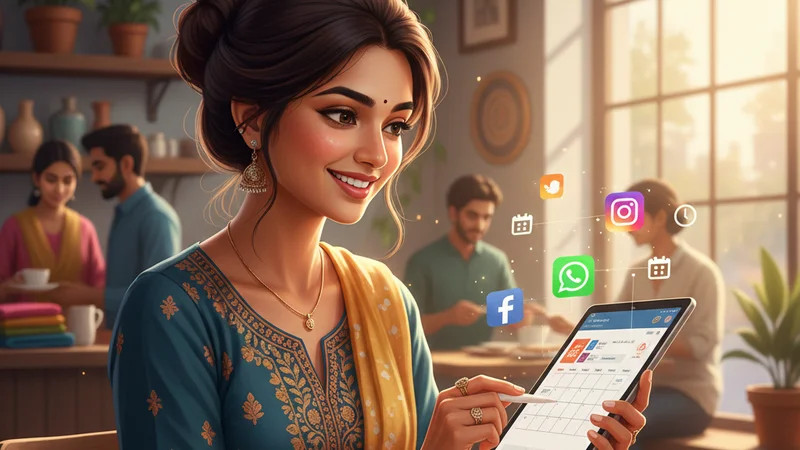
If you run a local shop, restaurant, salon, or small service business, you already know how important social media has become. Customers check Instagram before visiting a boutique, browse Facebook posts to find daily menus, and follow WhatsApp Status updates for offers.
But here’s the challenge: posting plain text or low-quality images doesn’t grab attention anymore. To stand out, you need eye-catching, professional-looking graphics.
The good news? You don’t need to hire a designer or buy expensive software. There are many free tools that let you create beautiful, engaging social media posts quickly—even if you’ve never designed anything before.
This article lists the best free tools for creating social media graphics, explains what makes them unique, and gives tips on how small businesses in India can use them effectively. And when you combine your beautiful graphics with a business listing on LocalShouts (https://www.localshouts.com), you’ll be discovered by even more customers in your neighborhood.
Why Social Media Graphics Matter
Before we dive into tools, let’s quickly look at why this matters:
- First Impressions Count: Your post is your storefront online—it should look polished.
- More Engagement: Attractive posts get more likes, comments, and shares.
- Professional Image: High-quality graphics build trust and make customers take you seriously.
- Better Reach: Good visuals perform better on Facebook, Instagram, and WhatsApp algorithms.
1. Canva—The All-in-One Favorite
If there’s one tool every small business owner should know, it’s Canva.
Why It’s Great:
- Huge library of ready-to-use templates for Instagram posts, Reels, Facebook covers, WhatsApp Status, and more.
- Drag-and-drop editor—no design skills needed.
- Free stock photos, icons, and fonts.
- Option to upload your logo and create a consistent brand kit.
Best For:
Product showcases, festival greetings, sales promotions, and quick everyday posts.
Pro Tip: Batch-create 7–10 posts for the week in one go and schedule them using Canva’s free content planner.
2. Adobe Express – Clean and Professional
Adobe Express (formerly Adobe Spark) is a solid free option if you want a slightly more polished look.
Why It’s Great:
- Professionally designed templates with a premium feel.
- Brand kit feature to keep your colors, fonts, and logo consistent.
- Simple video creation for short ads or tutorials.
Best For:
Boutiques, salons, or businesses that want a sleek, modern look for their social media pages.
3. VistaCreate—Perfect for Animated Posts
Previously called Crello, VistaCreate is a great tool if you want to add some movement to your posts.
Why It’s Great:
- Thousands of animated templates.
- Perfect for making Instagram Stories that stand out.
- Easy to customize with your own photos and text.
Best For:
Restaurants posting daily menus, cafés showcasing dishes, or small brands looking for eye-catching animated content.
4. Snappa—Fast and Simple
Snappa is ideal for those who want a clutter-free, quick design experience.
Why It’s Great:
- Lightweight and easy to use.
- Comes with social media-sized templates (no need to crop manually).
- Includes a library of free stock images.
Best For:
Business owners who want something faster than Canva and only need simple graphics.
5. Figma (Free Plan) – Great for Collaboration
Figma isn’t just for designers—its free plan works well for small business teams.
Why It’s Great:
- Real-time collaboration—multiple team members can work on the same post.
- More design freedom compared to template-based tools.
- Great for creating custom layouts and branded templates.
Best For:
Businesses with more than one person handling social media who want to keep brand design consistent.
6. Pablo by Buffer – Minimalistic & Focused
Pablo is a small but powerful tool designed specifically for social media graphics.
Why It’s Great:
- Extremely easy—create a post in under 2 minutes.
- Comes with over 600,000 free images.
- Ideal for quotes, announcements, and simple promotions.
Best For:
Quick text-based posts like daily motivational quotes or flash sales.
7. Desygner – Mobile-Friendly Editor
If you prefer designing on your phone, Desygner is a great choice.
Why It’s Great:
- User-friendly mobile app.
- Templates for Instagram, Facebook, and YouTube.
- The free plan lets you create and save unlimited designs.
Best For:
Shop owners who want to create posts on the go without using a laptop.
8. Pixlr – Photo Editing Power
Sometimes, you just need to touch up photos before posting. Pixlr is perfect for quick, free photo edits.
Why It’s Great:
- Works directly in your browser—no installation needed.
- Tools for cropping, removing background, and adding text.
- Great alternative to Photoshop for simple edits.
Best For:
Businesses posting real photos of products and wanting to make them look professional.
9. GIMP – Free Professional Software
If you want a more advanced option (without paying for Photoshop), GIMP is worth exploring.
Why It’s Great:
- Full-featured design software—create detailed, custom graphics.
- Supports layers, filters, and effects.
- 100% free and open-source.
Best For:
Tech-savvy business owners or someone in your team who has a little design knowledge.
10. Remove.bg – Background Remover
This tool deserves a special mention because it solves a common problem: messy backgrounds.
Why It’s Great:
- Instantly removes the background from product photos.
- Lets you place products on a clean, professional backdrop.
- Works online and on mobile.
Best For:
Any local shop posting product photos—jewelry, clothes, food, or electronics.
How to Get the Most Out of These Tools
Having tools is one thing—using them effectively is what brings results.
- Create a Brand Kit: Use the same colors, fonts, and logo across posts.
- Batch-Design Content: Save time by making a week’s worth of posts in one sitting.
- Use High-Quality Images: Even free tools look great with good photos.
- Experiment with Formats: Try carousels, Reels, Stories, and square posts.
- Track Results: Use Facebook and Instagram Insights to see what type of post gets the best engagement.
LocalShouts: Your Local Discovery Partner
Once you create stunning posts, make sure people see them! A business listing on LocalShouts (https://www.localshouts.com) ensures your shop shows up when nearby customers search online. You can add links to your social profiles so customers can follow you directly.
Conclusion
Creating professional social media graphics doesn’t require a designer or big budget anymore. Free tools like Canva, Adobe Express, VistaCreate, and Snappa make it easy for any business owner to design beautiful posts in minutes.
Pick one tool to start with, create a few posts, and stay consistent. The more polished and regular your posts look, the more customers will trust your brand and buy from you.
And remember—pair your design efforts with a LocalShouts (https://www.localshouts.com) listing to maximize visibility and drive more local traffic to your shop.
FAQs
1. Which tool is best for beginners?
Canva is the easiest to start with because of its drag-and-drop templates and huge free library.
2. Do I need to pay for these tools eventually?
No, most have free plans that are enough for small business needs. You can upgrade later if needed.
3. Can I make posts on my phone?
Yes, tools like Canva, Desygner, and Adobe Express have mobile apps that work very well.
4. How do I make my posts look consistent?
Choose 2–3 brand colors, use the same fonts, and add your logo to every post.
5. What’s the fastest tool to create posts?
Pablo by Buffer is the quickest for text-based posts, but Canva is best for a mix of posts.
6. How often should I create new graphics?
Aim to batch-create 7–10 posts weekly. This keeps your social media active without daily stress.