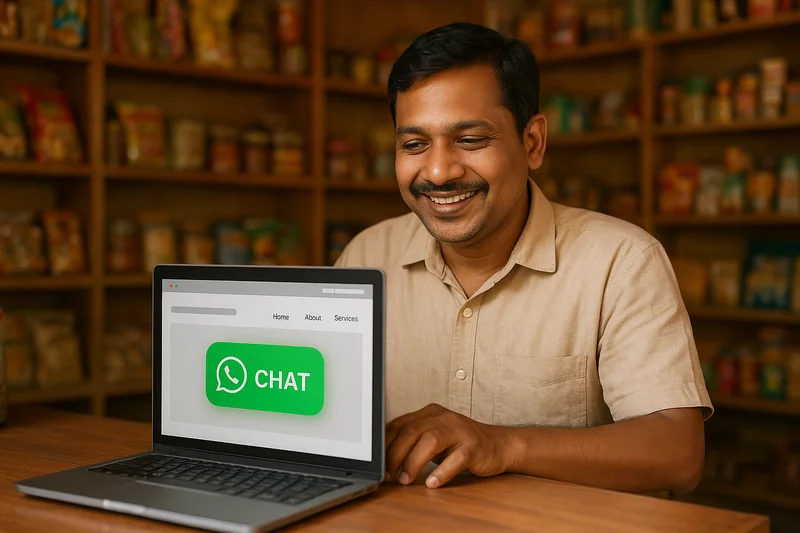
Imagine a potential customer visits your website and has a quick question — “Do you have this item in stock?” or “Are you open today?”
If they have to find your phone number, dial it, wait for you to answer, or send an email that might get read hours later—you might lose the sale.
This is where WhatsApp chat comes in. Adding a WhatsApp button to your website lets visitors contact you instantly with just one click. It’s convenient for them, and it means more leads for your business.
In this article, we’ll explain why adding WhatsApp chat is important, the different ways to do it, and how it benefits small businesses across India.
Why WhatsApp Matters for Indian Businesses
WhatsApp is the most widely used messaging app in India, with over 500 million users. For small businesses, this means:
- Easy communication: Customers are already using WhatsApp daily.
- No extra app needed: They don’t have to install anything new.
- Faster responses: Messages are instant, unlike email.
- Builds trust: Customers feel more comfortable messaging than calling.
By connecting WhatsApp with your website, you reduce the gap between customer interest and action.
Benefits of Adding WhatsApp Chat to Your Website
1. Quick Customer Support
Customers can ask questions about products, services, or timings without filling out forms or waiting for a reply.
2. Higher Conversions
If someone is already on your website, they are interested. A WhatsApp button makes it easy to take the next step—which means more sales.
3. Personalized Interaction
Unlike live chatbots, WhatsApp allows you to talk to the customer directly, build relationships, and even share photos, videos, or documents.
4. Easy for Non-Tech Users
Even people who are not very tech-savvy know how to use WhatsApp. This makes it perfect for local customers.
5. Works on Mobile and Desktop
Whether your customer is browsing on a phone or computer, they can message you with one click.
Different Ways to Add WhatsApp Chat to Your Website
There are several ways to do this—from the simplest free method to more advanced tools with automation.
Option 1: WhatsApp Click-to-Chat Link (Free and Simple)
This is the easiest method.
- Create a link using this format:
- https://wa.me/<your-number>
- Replace <your-number> with your full phone number, including the country code (without the + sign or spaces).
- Example for India:
- https://wa.me/919812345678
- Add this link as a button on your website.
- Example: “Chat with us on WhatsApp.”
- When customers click, it opens WhatsApp with a pre-filled chat window.
- You can even add a default message like this:
- https://wa.me/919812345678?text=Hi%20I%20visited%20your%20website%20and%20want%20to%20know%20more.
Option 2: WhatsApp Business App
If you use the WhatsApp Business app, you can create a short link from within the app:
- Open WhatsApp Business
- Go to Business Tools > Short Link
- Copy the link and place it on your website
This also allows you to set quick replies, greeting messages, and away messages.
Option 3: Floating WhatsApp Button Plugin
If your website is built on WordPress, Wix, or Shopify, you can use a plugin or widget to add a floating WhatsApp button.
Benefits of a floating button:
- Always visible on every page
- Easy for customers to find
- Professional look
Popular tools include:
- GetButton (formerly WhatsHelp)
- Elfsight WhatsApp Chat Widget
- Chaty Plugin for WordPress
Option 4: WhatsApp API (Advanced)
For larger businesses, the WhatsApp Business API allows you to:
- Connect chatbots
- Manage multiple agents
- Send automated order updates and notifications
This requires a bit of setup and is best if you receive a high volume of messages.
Step-by-Step: Adding a Simple WhatsApp Button
Let’s go through the process for a basic business website:
Step 1: Get Your WhatsApp Link
Use the format:
https://wa.me/<your-number>
Step 2: Choose Button Design
Make a green button with the WhatsApp logo and text like “Chat with Us” or “Message Us Now.”
Step 3: Add It to Key Pages
- Homepage (top section and bottom)
- Contact page
- Product/service pages
Step 4: Test It
Click the button yourself to ensure it opens WhatsApp correctly.
Step 5: Promote It
Tell your customers, “Now you can reach us instantly via WhatsApp—just click the button on our site!”
Best Practices for Using WhatsApp for Business
- Respond quickly: Customers expect fast replies.
- Use greeting messages: Welcome customers when they message you.
- Set business hours: Use away messages outside working hours.
- Stay professional: Keep replies polite and relevant.
- Avoid spam: Don’t send too many promotional messages.
How LocalShouts Can Help
If you don’t have a website yet, you can still use WhatsApp to connect with customers through a business listing on LocalShouts (https://www.localshouts.com).
Your LocalShouts listing can include:
- Your WhatsApp link
- Your shop location
- Business hours
This way, customers can contact you even before you invest in a full website.
Real Example
A small boutique in Jaipur added a WhatsApp button to their site. Within 2 months:
- They received 40% more inquiries
- Many customers shared photos of outfits they wanted, making it easier to recommend products
- Repeat customers started placing orders directly through WhatsApp
Conclusion
Adding WhatsApp chat to your website is one of the simplest ways to boost customer engagement. It removes barriers, builds trust, and makes it easy for people to contact you instantly.
Whether you’re running a salon, a bakery, a coaching center, or a repair service — a WhatsApp button can help you capture more leads and close more sales.
Start with a simple click-to-chat link, test it, and watch how it increases your customer interactions.
FAQs
1. Do I need a WhatsApp Business account to add chat to my site?
No, you can use your regular WhatsApp number, but WhatsApp Business gives more features.
2. Can I add multiple WhatsApp numbers?
Yes, you can create buttons for different departments or team members.
3. Will customers see my personal WhatsApp?
Yes, they will message the number you set up. Use a separate number for business if you want privacy.
4. Does WhatsApp chat work on computers?
Yes, it opens WhatsApp Web on desktop browsers.
5. Can I track how many people click the WhatsApp button?
Yes, you can track clicks using Google Analytics or Facebook Pixel.
6. What if I don’t have a website?
You can share your WhatsApp link directly on social media or create a free listing on LocalShouts (https://www.localshouts.com) to start getting messages.